


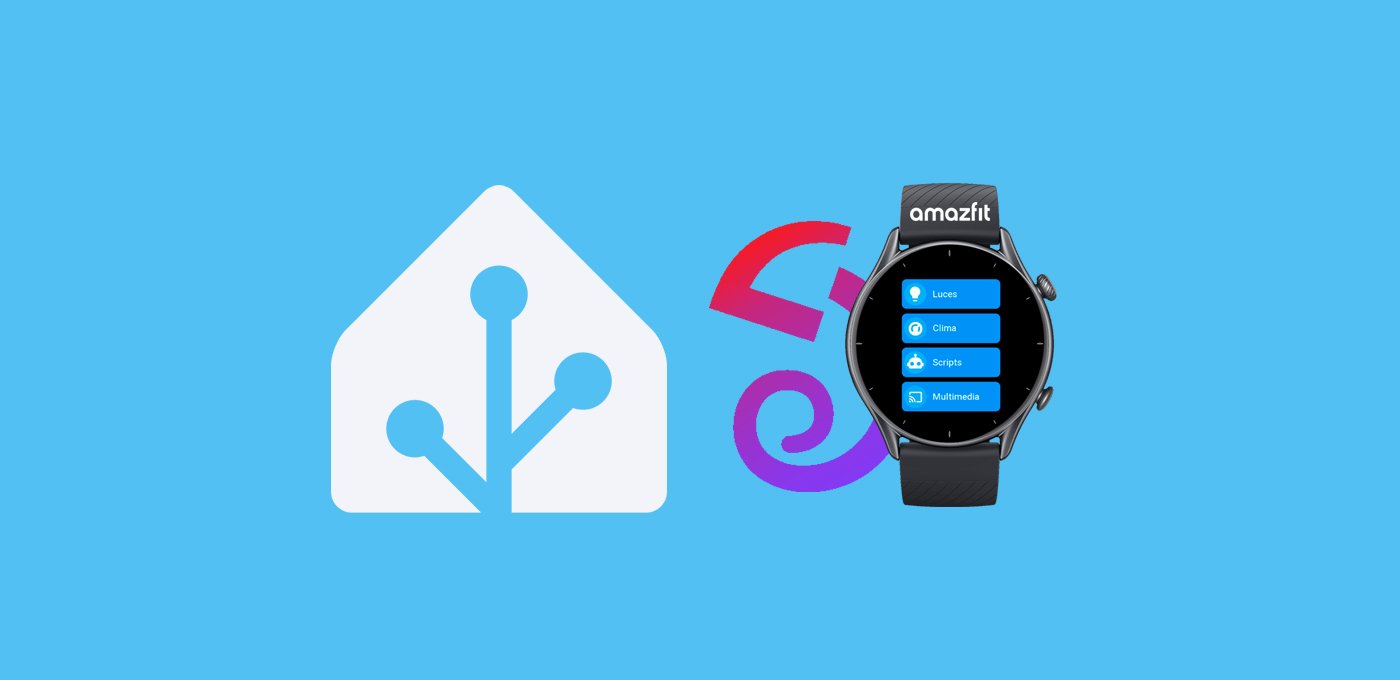
Get ready to take it to the next level because now you can control HA from your Amazfit watch with our app!
Índice
Amazfit Watches: Perfect for HA
When we have our home automated with Home Assistant, we love finding new and better ways to interact with it. Our mobile devices, wall panels, remotes, voice assistants… each has its pros and cons. However, being able to control everything from the smartwatch always on your wrist seems like one of the best options to me.
This was already officially possible if you had an Apple Watch or a Wear OS smartwatch. But personally, I see two major drawbacks with these types of watches: first, their high price, and second, their battery life, which (at best) lasts a couple of days.
Amazfit smartwatches, however, are a perfect alternative (in my opinion). The secret of this brand (which belongs to Zepp Health, a key partner of Xiaomi) is that they run on their own operating system, called Zepp OS. This system is much lighter, allowing the watch’s battery to last more than 15 days without breaking a sweat (depending on the model). Additionally, Amazfit offers a highly competitive range of watches in terms of quality/price (you can find several models for under €100, especially during sales periods).
The only downside was that they didn’t allow for Home Assistant control, until now, thanks to our app 😄.


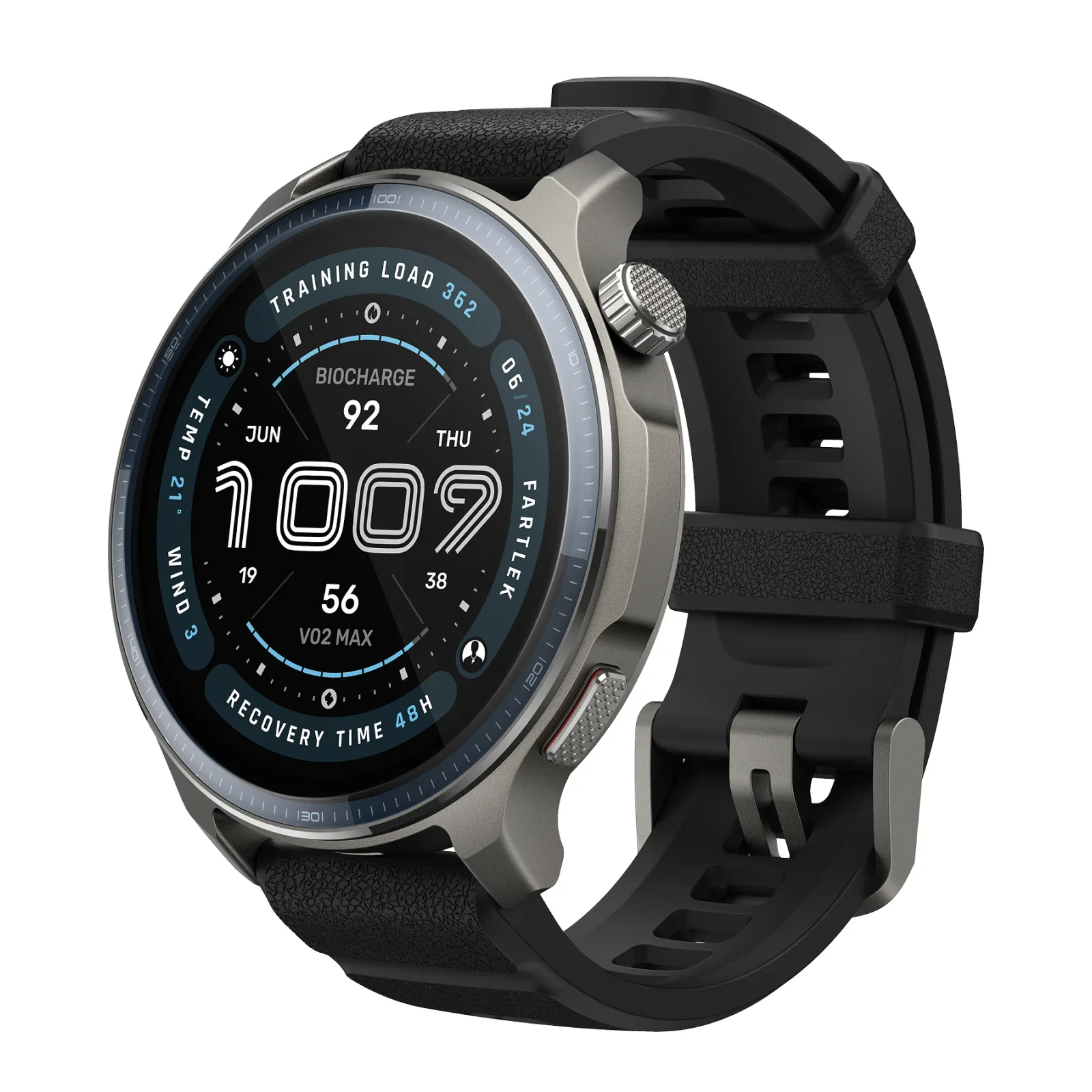

HA Companion for Amazfit Watches
Yes, friends! Within our community, a project was born to create an app that allows you to control HA from your Amazfit watch. After a lot of hard work, it’s now a reality you can download it directly from the Zepp Store.
App Features
Our app to control HA from your Amazfit watch comes in two versions. ‘FREE’ version is completely free and can be downloaded by anyone. Additionally, you can purchase the enhanced version for a one-time payment of $1.50 (plus VAT). This version includes additional features and, most importantly, helps support the project so we can continue improving the app.
The app’s features include:
[sp_easyaccordion id=»12610″]
Installation and Setup
To control HA from your Amazfit watch, just follow these steps:
- On your mobile device, download and install the Zepp app and pair your watch.


- From the bottom menu, go to the «Device» section and tap on «APP STORE.» This will take you to the official Zepp store, where you can find our app under the «Tools» section or by searching for «HA Companion.»
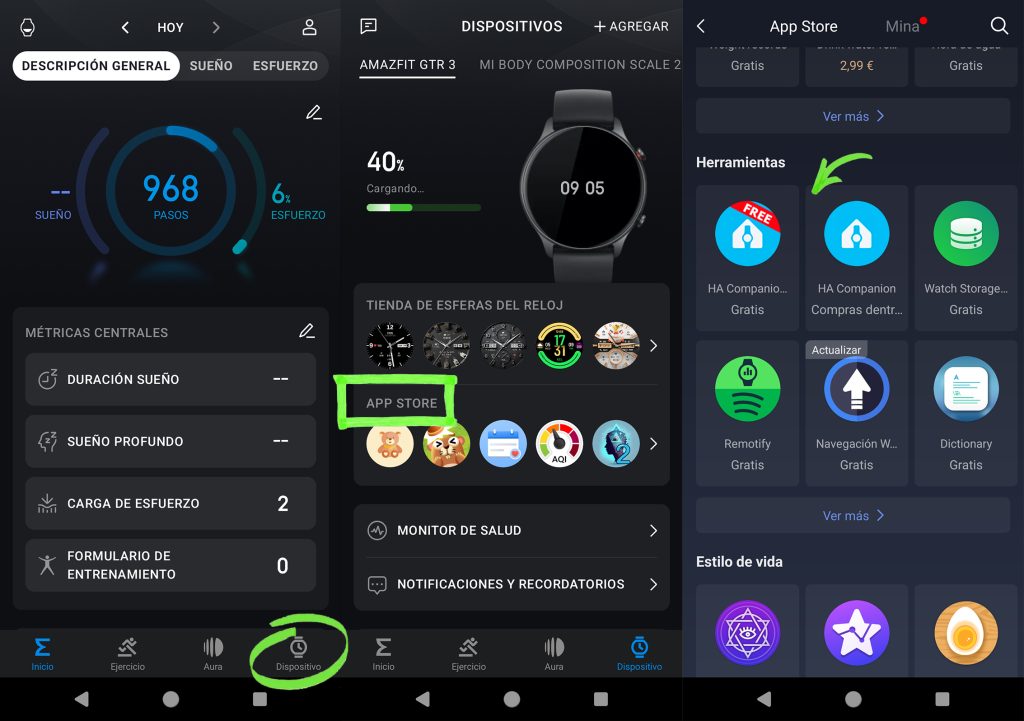
- Enter either the free version or the extended version, tap the heart to leave us a ‘like’ in the store 🥰, and then tap «Install.»
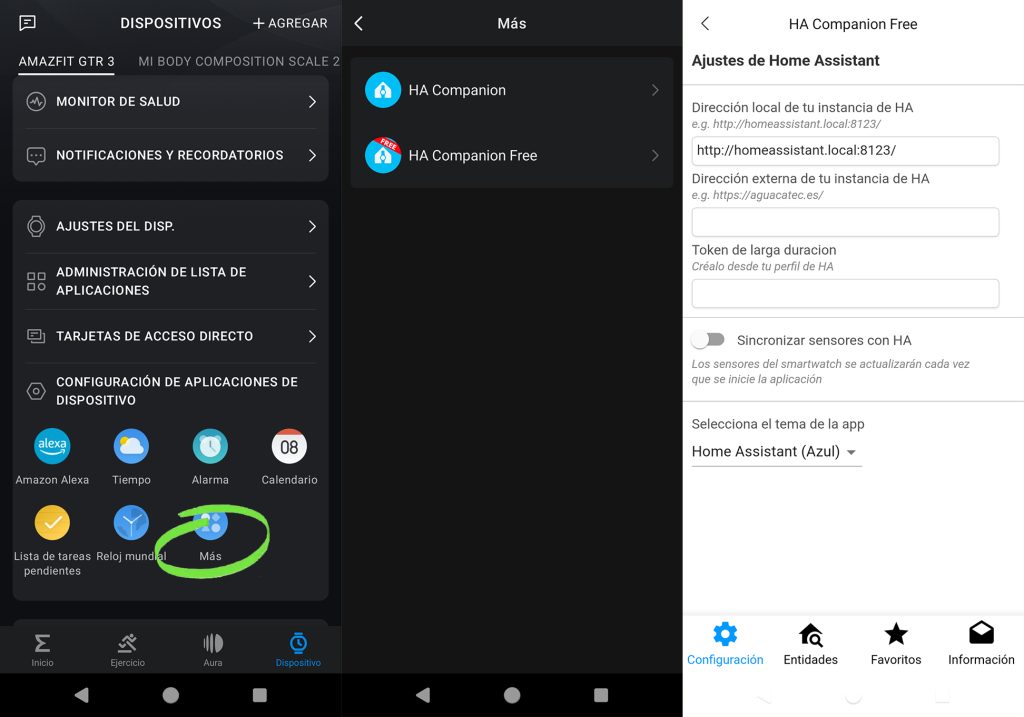
- Return to the device menu and tap the «More» icon under the «Device App Settings» section. Then, tap on the app to access the settings interface. From here, you’ll need to provide the following information:
- Local address of your HA instance. Enter your local Home Assistant address, which in most cases will match the default example address.
- External address of your HA instance. Provide the domain you use to access Home Assistant externally so the watch will continue functioning when you’re outside your home.
- Long-lived token: This needs to be generated from Home Assistant. To do this, go to the HA app on your mobile device, tap on your username in the side menu, then go to «Security.» Scroll down to the bottom of the screen, tap «Create Token,» and give it a name (for example, «GTR 3»). Tap the icon next to the code to copy it, then return to the Zepp app to paste it.
- If you want the watch data (battery, activity, sleep, etc.) to be sent to Home Assistant every time you open the app, enable the corresponding option.
- You can also select the app’s theme to change its colors.
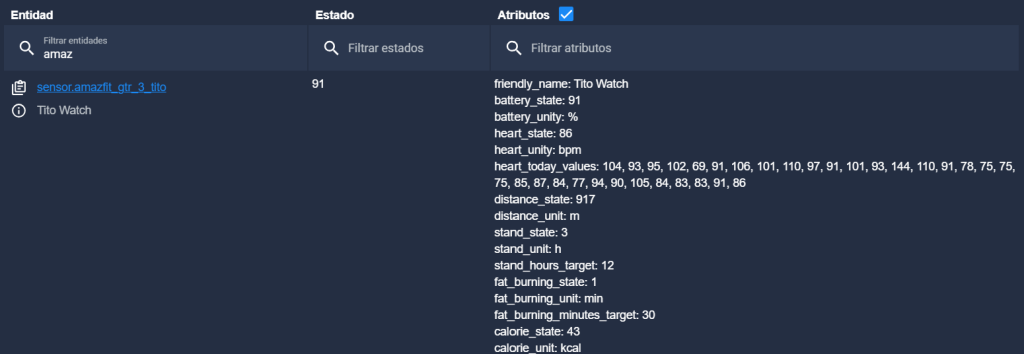
- If you now go to Home Assistant > Developer Tools > States and search for «Amazfit» or your username in Zepp app, you will find the sensor that has been created (for example, ‘sensor.amazfit_gtr_3_tito’), with all the watch’s information.
- Now, go back to the app’s settings interface and enter the «Entities» section. Use the search bar to enter the domain (e.g., ‘light’ for lights) or the name of the entity you want to locate, then tap «Search.» At the bottom, you’ll see a list of all the entities that match your search criteria. Simply check the corresponding box, and the entity will appear in the app under the appropriate section.
- If you now go to the «Favorites» section, you’ll see all the entities selected in the previous step. From here, you can choose the ones you want to add to your favorites by tapping the star icon next to them.
- Remember, as mentioned in the «Information» section, you can report any errors or suggestions in our Telegram community.
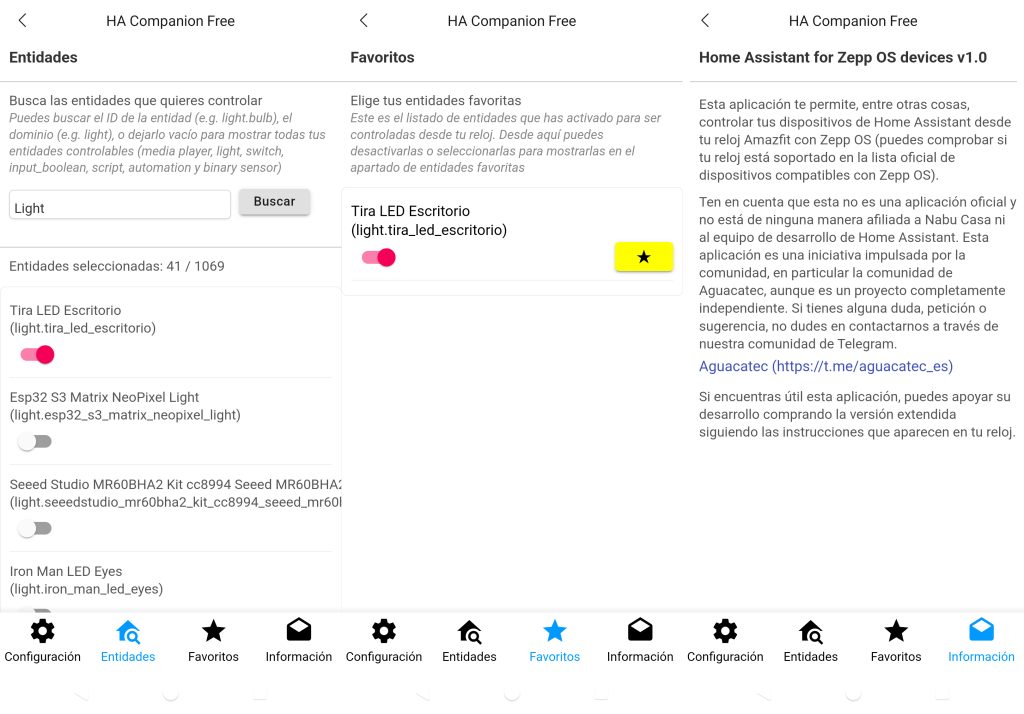
- All set! If you check your watch, you’ll find that you can now control HA directly from your Amazfit watch!
- Finally, if you’d like, from the «App List Management» section, you can reorder your apps so the HA app appears at the top.
Payment via KiezelPay
As mentioned, if you’d like, you can purchase the extended version for a one-time payment of 1.50 USD (plus VAT) to access additional features and, most importantly, support the project so we can continue improving the app. The process is very simple:
- Download the extended version from the official Zepp store.
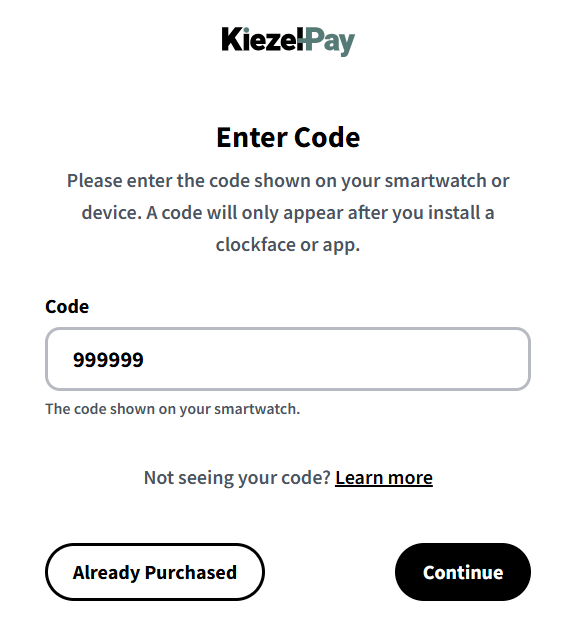
- When you open the app on your watch, you’ll see a 6-digit code and a message directing you to www.kzl.io/code.
- On this page, enter the code shown on your watch and click «Continue.»
- On the next screen, you’ll need to enter your email (to receive the payment receipt) and choose your payment method. Remember, if you’re an «Aguacatec Lover», you can download it for free! Just ask me for your discount code.
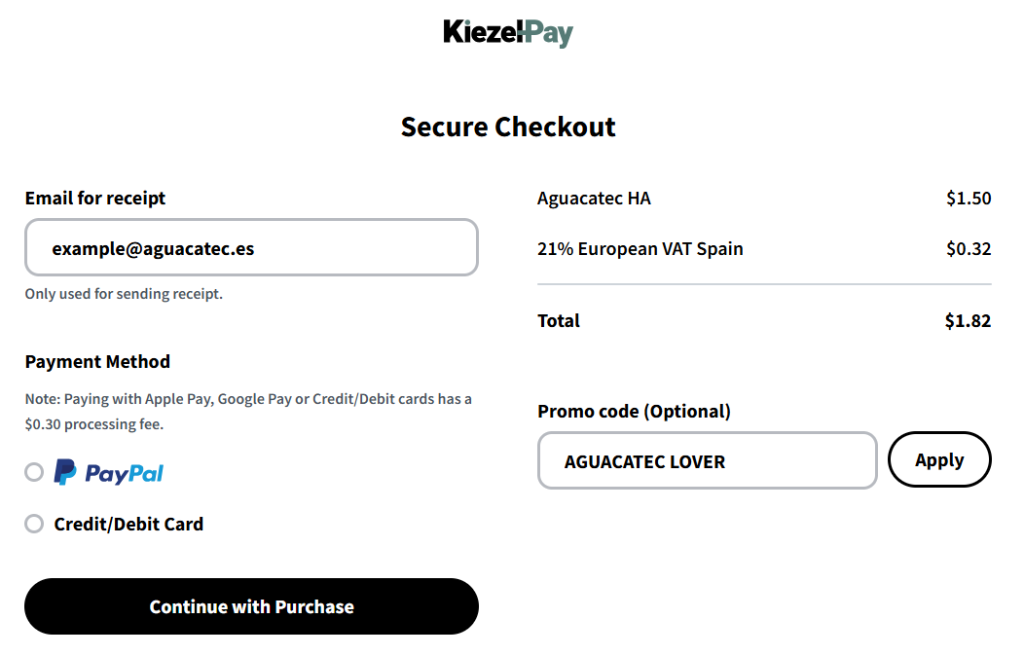
- Click on «Continue with Purchase» to complete the payment process.
- Done! You’ve now unlocked all the extended features to control HA from your Amazfit watch!